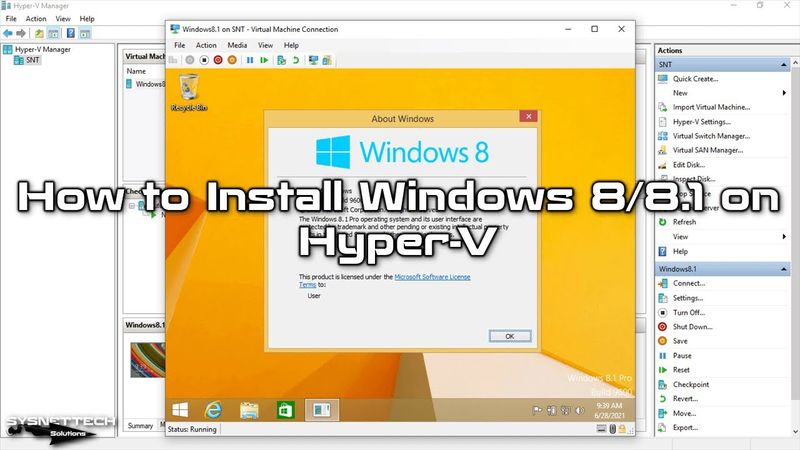
How to Install Windows 8/8.1 on Hyper-V | SYSNETTECH Solutions

Информация о загрузке и деталях видео How to Install Windows 8/8.1 on Hyper-V | SYSNETTECH Solutions
Автор:
SYSNETTECH SolutionsДата публикации:
02.07.2021Просмотров:
3.8KОписание:
0:00 - Creating External Switch; 0:55 - Creating a New Virtual Machine; 2:08 - Configuring the VM's Settings; 2:55 - Installing Windows 8/8.1; 12:45 - Fixing Screen Resolution; 16:15 - Testing Internet Connection; 16:40 - Using USB Flash Memory in VM. This tutorial walks through installing Windows 8/8.1 on a Hyper‑V virtual machine. First, enable Hyper‑V in Windows Features and restart. Then launch Hyper‑V Manager, create an External Switch linked to your host’s Ethernet or Wi‑Fi adapter, and configure the switch in Virtual Switch Manager. Next, create a new virtual machine, choose Generation 1 or 2 depending on BIOS/UEFI support, assign 4 GB of RAM (or enable Dynamic Memory for multiple VMs), and attach a virtual hard disk of at least 50 GB. In the installation options, select “Install an operating system from a bootable image file” and browse to your Windows 8/8.1 ISO. Finish the wizard, then start the VM, set the processor count to four or more, and begin the Windows installation. After installation, adjust screen resolution and verify network connectivity, and optionally use a USB flash drive within the VM.
Похожие видео: How to Install Windows

افزودن کپی و پیست به هایپروی به کمک Integration Services - جلسه 7

آموزش N8N روی لپتاپ شخصی: نصب آسان با Docker
Полный курс Linux: от начинающего до опытного пользователя!
Как установить Windows 10 и 11 за 3 минуты + Активация
Run an OpenWRT VM on Proxmox VE