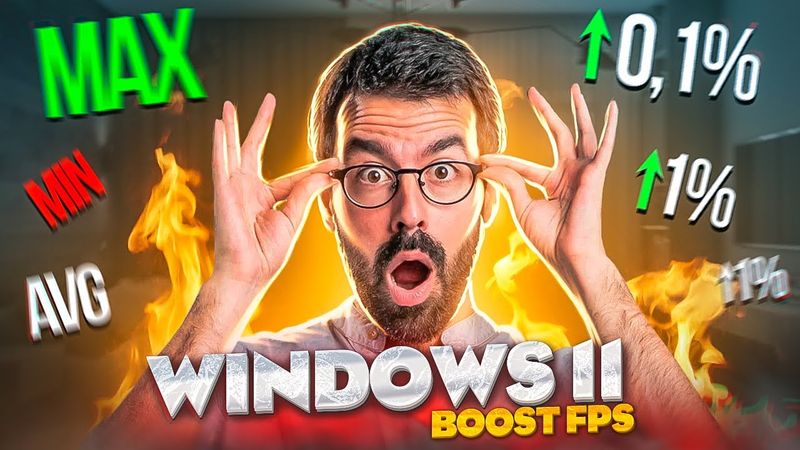
🚀НАСТРОЙКА ПК ДЛЯ ИГР/ОПТИМИЗАЦИЯ WINDOWS 10/11 - КАК УСКОРИТЬ И ПОВЫСИТЬ FPS!

🚀НАСТРОЙКА ПК ДЛЯ ИГР/ОПТИМИЗАЦИЯ WINDOWS 10/11 - КАК УСКОРИТЬ И ПОВЫСИТЬ FPS! Videosu İçin İndirme Bilgileri ve Detaylar
Yükleyen:
WelsonYayınlanma Tarihi:
18.11.2021Görüntülenme:
868.6KAçıklama:
At 0:00 the video opens with an introduction explaining why a proper PC setup is essential for gaming. At 1:40 the presenter discusses the importance of a clean Windows 11 installation and how it affects performance. At 2:40 backup and recovery procedures are outlined, followed by instructions at 3:27 for preparing a Windows 11 install image on a USB drive. At 5:21 the installation process is shown, including secure boot and UEFI settings. At 10:28 the presenter introduces an optimization archive and explains how to connect to the internet and install necessary drivers. At 11:40 the video covers creating and formatting partitions on a hard drive. At 12:12 the installation of .NET Framework 3.5 is demonstrated, and at 12:45 mouse acceleration is disabled for better control. At 13:10 DirectX libraries are installed, followed by Microsoft C++ support at 13:33. At 14:37 Windows 11 drivers are updated via the update center, and at 15:23 Windows activation is explained. At 15:57 chipset drivers for Asus/Gigabyte/MSI/Asrock motherboards are installed, and at 17:18 GPU drivers for Nvidia/AMD are added. At 17:50 the old GPU driver is removed cleanly with DDU, and at 19:37 a new Nvidia driver is installed. At 20:48 GeForce Experience is configured, and at 21:39 the correct method for updating GPU drivers is shown. At 22:07 performance tests are run before optimization. At 23:45 LatencyMon is introduced, with a brief discussion of latency causes and solutions. At 28:35 unused devices are disabled in Device Manager, and at 29:43 the MSI Mode Utility is used. At 31:16 Nvidia settings for maximum performance are applied, and at 39:48 settings for image quality and G‑Sync are enabled. At 41:22 screen, display, graphics, and hardware acceleration options are adjusted. At 42:34 power settings are configured, and at 43:01 BITSUM HIGHEST PERFORMANCE mode is installed. At 45:30 power plans are switched with a mouse click, and at 50:38 an alternative method for changing the default power scheme is shown. At 51:26 Windows 11 performance settings are activated, and at 52:16 further Windows 11 parameters are tweaked. At 57:38 programs are removed via PowerShell, and at 58:15 temporary files and the C: drive are cleaned. At 59:07 the registry is tweaked, and at 1:00:28 Windows services are disabled. At 1:02:48 sound settings are adjusted, and at 1:04:54 mouse settings are refined. At 1:10:15 sticky keys are disabled, and at 1:10:55 HPET is enabled. At 1:13:18 ISLC settings are configured, HPET is forced to 5 ms, and HPET is disabled in Windows. At 1:16:17 ISLC is set for RAM cache, and at 1:18:55 Steam is configured. At 1:20:09 Discord auto‑updates are turned off, and at 1:21:41 full‑screen optimization is disabled. At 1:22:01 CPU 0 is disabled in games, and at 1:23:33 unnecessary desktop items and autorun entries are removed using Autoruns. At 1:24:14 the Start menu is organized, and at 1:24:40 LatencyMon and game tests are run again. At 1:27:14 the video summarizes Windows 11, and at 1:27:54 pros and cons are discussed. At 1:29:42 the video concludes with final thoughts on Windows 11 for gaming.
Benzer Videolar: НАСТРОЙКА ПК ДЛЯ ИГР

💪Актуально 2025 - Как ускорить и сделать загрузку Windows 10 быстрее! 4 Шага к скорости!
Windows 11 24H2 Летаем на ракете! 🚀 Оптимизация и безопасность для твоего ПК 🛡️

085 Самый ВАЖНЫЙ переход в монтаже. Секрет прямых склеек

👉 Актуально 2025 г. Тормозит, глючит, лагает, зависает мышка Windows 11/10/8/7 - РЕШЕНО!

Из-за чего дорожает память DRAM? | Мышки от ICL | Облако на Байкалах