Toon Boom Harmony Rig/Puppet Animation Tutorial (PART 4)

Toon Boom Harmony Rig/Puppet Animation Tutorial (PART 4)34:29

Toon Boom Harmony Rig/Puppet Animation Tutorial (PART 4) Videosu İçin İndirme Bilgileri ve Detaylar
Yükleyen:

Jesse J. Jones

Yayınlanma Tarihi:

29.08.2024

Görüntülenme:

18.4K

Açıklama:

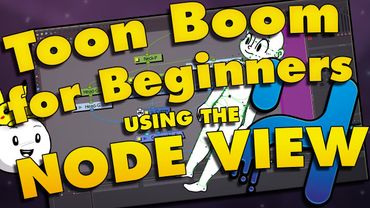
In this tutorial, we will go over how to animate a puppet rig in Toon Boom Harmony, even if you've never animated with a puppet rig before! By the end of this tutorial, you will take a shot from beginning to end, including how to import audio, animate talking, and export a completed animation as a video that can be uploaded to YouTube. This tutorial, to an extent, requires Toon Boom Harmony Premium, which gives you access to the node view. You can animate character rigs without the node view, but it makes customizing the rig and selecting specific parts more difficult, so I highly recommend having Toon Boom Harmony Premium to follow along. Character rigs, or animation puppets, are used in many modern animated shows like Rick and Morty, Family Guy, and South Park. Most of the television productions I have worked on have used Toon Boom Harmony Premium for their animation software, and most often it has been puppet rig animation. I feel it's important to know how to animate with a puppet rig to work in many modern animation productions. As always, let me know if you have any questions, want to show off what you're working on, or want to talk about your ideas for your own animation—share them in the comments section below. The video covers the following sections: introduction at 00:00, storyboarding at 01:22, setting up your scene at 02:40, importing a character rig at 04:18, rough pencil animation at 05:24, posing the first keyframe at 07:55, adding props at 12:22, posing next keyframes at 14:46, dropping off a prop at 15:27, copying and pasting keyframes at 17:32, rotating the head in 3D at 18:41, adding motion tweens and easing at 19:45, facial animation and lipsync at 23:55, how to fix a big accident at 29:15, adding blinks at 31:06, exporting a video for YouTube at 32:52, and final animation at 33:22.