How to Get Started with Notion (without losing your mind)
Download information and video details for How to Get Started with Notion (without losing your mind)
Uploader:
Jeff SuPublished at:
2/20/2024Views:
914.6KDescription:
Video Transcription
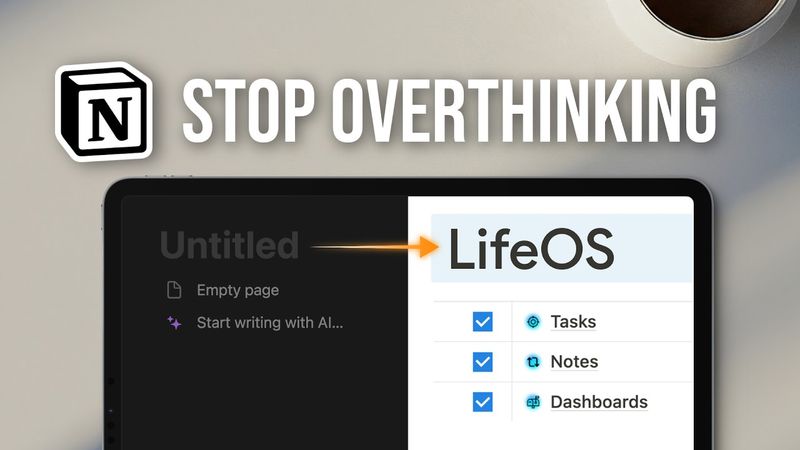
To help you get started in Notion without losing your mind, we'll begin with a completely blank Notion page.
And in just 12 minutes or so, you have your very own LifeOS home screen up and running.
It comes with one essential dashboard to help beginners get started.
And this dashboard is powered by two extremely simple databases.
And to prove to you, this is literally how I started using Notion years ago, this is my current LifeOS home screen.
And as you can see, it's basically set up the same way.
So,
Let's get started.
First, we give this blank page a name, Life OS, and we choose an icon.
I like to use the yin yang icon here.
We press enter, we press hashtag twice, space for heading two, dashboard.
forward slash blue.
You can choose whatever color you want.
I'll choose blue background here.
Enter and triple hyphen one, two, three to add a divider.
I just think that looks super clean.
And then double hashtag again, one, two.
And we choose, we type a database here, forward slash gray.
gray background and triple hyphen again, one, two, three.
Now the most common advice you'll hear from experienced users is that databases are the cornerstone of productive Notion setups.
So we're going to first build out our databases, then come back to the dashboard pages.
Go ahead and type in forward slash table and select the table view under database here.
And then we're going to actually select the data source and select a new database.
We're going to name this task
And because I don't want a table taking up half my screen, I'm gonna choose this button here and I'm gonna turn this into a page.
So I can now click into the task database and work on this in a clean page.
I'm gonna choose an icon and let's choose a check mark here like so.
And this is gonna be task.
This property, I'm going to change this property from a multi select to a date because we want tasks are attached to due dates.
I like to select the month date year because I was unfortunately, unfortunately brought up in the US and time format 24 hours.
And this is going to be renamed to do date like so.
Let's decrease the size here a little bit.
And the final property we're going to add is a checkbox because we want to check tasks that have already been completed.
I'm going to rename this.
Oops, sorry.
Click too fast there to done.
And pro tip with checkbox properties, you can actually just hide the property name.
I'm going to drag this to the left here so I can like click this like so.
Right.
oops and i'm going to change this table name to all tasks and i will select a bullet point drop down menu like so so it looks a little bit cleaner let's add some tasks just for placeholder purposes first is watch april vision pro review and number two is sell kidney to afford it
Due date, let's say for the sake of argument, today is when I'll watch a review, tomorrow or in two days, I will sell my kidney.
Oops, there we go.
Let's actually clear this up.
Next, we're gonna book a flight to San Francisco to complain to Tim Cook directly.
And as you can see, this has wrapped columns turned on.
So I'm just going to go to the three buttons here, click layout and toggle off wrap all columns.
I just think this looks cleaner.
I'm going to choose a due date here to be two weeks from now.
And since this is a task database, we're going to add a sort by due date ascending so that the next due task is shown up top.
And if you're using notion yourself, you will not see this safe for everyone option.
So you can choose to ignore it for this entire tutorial.
And now if I choose to add a new task, uh, like, and comment on Jeff's video and said that due to today, you'll see that it automatically jumps up top and that's it.
We're done with a task, a database.
Now we can either click the life OS button here to go back a page, or I recommend
getting used to keyboard shortcuts as soon as possible.
So command or control left bracket to go back a page.
And we're going to now start building our next note taking database.
So forward slash table, same exact process as before.
Select the table view new database.
We're going to name this notes database.
And similar to last time, we're going to click this and turn into a page to have notion that notes database rather be in a standalone page.
an icon, and I like to choose one of the writing icons here like so and when it comes to properties, we're going to rename this to note, we're going to change this to date, actually, and you'll see why in a little bit, like so full date, month date, year and 24 hour, let's decrease the size of this a little bit.
And then we're here, we're going to add select
property type and we're going to we're going to type note type and we'll come back to this in a little bit.
We're going to add the fourth property is created time.
So, you know, when the note was created, let's choose the exact same time format and we're going to
at a last updated time.
So how recently the note was updated.
We're gonna change that.
And there you go.
You might be confused as to why there's another date property here.
For example, if I had a one-on-one meeting with my manager,
I'm gonna start the note today, but the meeting is for tomorrow.
So the created time wouldn't accurately reflect that.
I personally have three categories of notes.
The first notes type is when a meeting occurs or presentation happens and you're taking down notes, summarizing your learnings and findings.
The second type of notes, for example, let's say my friend tells me about his trip to Iceland.
I'm like, oh, think about traveling to Iceland.
Sounds like a beautiful place to go.
And let's say this is happening like next week in the future.
This would count as a thought for me, like thoughts, right?
No meeting happened, no presentation occurred.
It was just me thinking by myself, oh, I should do something or this was interesting.
And the third category of notes is if I clipped a YouTube video or online article, for example, intro to AI by Google.
And let's say this happens two weeks from now, I would categorize this as research.
And you could change the colors of all these notes by clicking through button here.
Let's say notes is a blue thought is yellow and research.
We can let it remain gray.
And finally, let's change the view name to all notes.
And similar to last time, let's select the bullet point one, and we can sort by dates, uh, descending this time so that the most recent note, recent notes are shown up top, say for everyone, or just save if you're using notion by yourself.
Now,
Now that we have these two databases, let's build out our first dashboard.
So forward slash page this time, instead of a table enter, and we're going to name this command center.
Let's select an icon.
Let's do the activity icon, right?
Like so, and this is a personal preference, but whenever I create a new page, I like to press enter forward slash breadcrumb to show the current page location.
Then enter again, hyphen, hyphen, hyphen to add a divider line.
I just think this looks super clean.
Then top right, we're gonna choose this three dots and we're gonna actually turn this page to full width to give us more space to work with.
Hashtag, hashtag, or yeah, pound sign, pound sign.
space for heading two, and we're gonna choose weekly task view here, forward slash, blue again, hyphen, hyphen, hyphen.
We can select these two elements, Command D to copy and paste, move the newly created elements to the right here, like so, drop it.
And we're going to move the divider line back up here.
We're going to change this to notes view.
This next part is what makes Notion so powerful.
We will now create views of the two databases we just created so that we can see our tasks and notes in a single location.
This is why this is called the command center.
Starting with the weekly view section forward slash table.
we're still gonna select the table view under databases.
But unlike last time, we're gonna select the task database we built earlier in this video.
And we're gonna choose to copy an existing view, all tasks.
Now, before we do anything else, you want to actually left click on all tasks and make a duplicate view.
So you have the all task view still.
And then we're going to play around with this new view.
We're going to rename this to upcoming.
I want to see the upcoming tasks in the next seven days.
We're going to change the icon here to an eye icon, and then we're going to select the filter to done.
is unchecked so that all uncompleted tasks will be visible, right?
We're gonna save this.
And we're gonna add another filter because I want the upcoming seven-day task to be visible only.
So we're gonna choose the due date.
Go in.
Start date is on or before drop-down menu one week from now.
So all tasks between today and the next week will be shown.
We're going to save for everyone and we're going to make sure the sort due date is still ascending.
So the next task will be shown first.
So let's say cell kidney that's due two days from now.
If I were to select three weeks from now, it disappears, right?
Command Z.
We bring it back.
So that's how this works.
To clean this up a little bit, we can actually click filter to get rid of all the filter and sort options.
And we're gonna click the three dots here and hide the database title.
Now we can toggle between the upcoming view and the all task view.
The third and final view we're gonna build is something called the inbox view.
And it's very important for task management.
And this is how it works.
Let's first go to the all task view again.
We're gonna left click three dots and make another duplicate of the all task view.
We're going to name this inbox and we're going to select the mailbox icon like so.
And the only filter option here will be the due date is going to be empty is empty.
Now, the way this works is you can quickly capture any ideas or tasks you have in here without assigning a due date because sometimes you don't know when the task has to be due.
And you can find them all here.
The second you add a due date, so let's go through an example.
Rehearse for next presentation.
The due date is empty right now, but if I select it next week, it disappears.
And if you go to upcoming, it shows up rehearse for next presentation, right?
So let's go, let's actually command Z, go back to the inbox view.
So all tasks without a due date will be shown here.
We can click the three dots and hide the database title.
And I like to move the inbox view, oops, to the middle here.
So now you have three views, upcoming, inbox, and all tasks.
Moving over to the notes view, this is gonna be super simple compared to what we did with tasks.
Forward slash, table.
We're gonna select the table view under database.
And we're gonna select the notes database we just created.
And we're gonna copy an existing view, all notes.
And if you remember, this is sorted by the date descending.
So first let's hide this database title to make it cleaner.
And we're going to click on all notes here and we're going to make a duplicate view again.
And we're going to change this.
We're going to rename this to recent notes.
So recently updated notes.
I'm going to choose an icon.
So clock, let's choose a clock, something like this maybe.
And instead of sort by due date, sort by date descending, we're going to sort by last updated time descending, say for everyone.
So let's say this meeting with my manager is happening tomorrow, but if I just change this to, even though the date is still scheduled for tomorrow, but because the last updated time was just now, a couple seconds ago, it's gonna jump to the top.
And speaking of this looks a little bit messy, so I'm just going to actually click the three dots here and we're going to choose properties and we're going to deselect these two to keep this view cleaner.
This does not mean we're deleting the column, but rather just hiding them.
So click and click.
So now within the notes view, if you click on the filter option to get rid of the sort options, we see the note title, the note date and the note type.
And we can even tidy this up a little bit.
As you use Notion more and more, you'll figure out what other sections you wanna add to your command center.
For example, for me, I have the exact same upcoming weekly task view here, right?
But I have other sections as well.
Let me know in the comments if you want entire video on this HQ slash command center of mine.
In the meantime, let's move on to a must-know feature all beginners should use, templates.
For example, in your notes view, if you click here or click the new button here, you'll be greeted with an empty page.
Team meeting, and you have to populate everything yourself.
The date, oh, it's on, okay, not Saturday, it's Monday.
The note type is gonna be notes, and it's gonna be key takeaways, one, two, three, notes,
And then you have to do this again and again, every single time.
A much more efficient way is to first, let's exit out by pressing escape, clicking the dropdown menu here next to the new button and choose new templates.
And we're gonna press command or control enter to expand this to full screen.
Click the three dots and we're gonna click full width and let's title this, oops, new note, new note.
choose a meaningful icon, let's say something related to writing again, like a pencil.
I like to have the note type moved up below the date, and we can actually choose the date to dynamically reflect the date you create the note, so today.
And I like to hide the created time and last updated time, last edited time rather to keep this clean.
And within the page content itself, hashtag, hashtag, heading two, key takeaways,
I like to use this, the purple color.
Let's switch it up right now, three hyphens.
I'm gonna select this like I did before, Command and Control D to make a copy of this.
Move this to the right, and this is gonna be, oops, this is gonna be titled Action Items.
I'm going to move this up top and down here, heading to again notes, and we're going to have gray hyphen, and we're going to have one bullet point here.
We're going to have a number here because there's one, two, three takeaways.
And for action items, I'm going to have a checkbox back in our commands interview.
We can select the dropdown menu and choose this new note template.
We just created to be the default for all views within notes database escape.
And now whenever we press the new button.
A new note will be generated with our template.
The three section headers are automatically populated and we can just start taking notes.
Jeff's intro to Notion video.
This is going to be a research note type because you're watching this video right now.
It's a nice video to learn from.
Action items, like and subscribe.
So this dashboard is more than enough to get you started, but it wouldn't be a Jeff suit video without a bonus tip.
So back in your life OS page, let's create a new page and title it.
tasks view.
Wait, Jeff, we already have an upcoming tasks view in the command center.
Yes, but I've only shown you one database format in this video so far, and that's the table format.
Back in this newly created task view, we're gonna do this.
Let's add an icon.
Let's use another check mark, not the exact same one as before.
Personal preference, enter forward slash breadcrumb and hyphen, hyphen, hyphen.
And now we're gonna give a heading to
calendar view, and let's change this blue, hyphen, hyphen, hyphen, forward slash table, table view database, and we're gonna select the exact same task database as before, copy and existing view all tasks, except this time, instead of table under layout, we're gonna choose the calendar view.
Let's toggle off the database title again, let's click X here, and now,
Oh, let's click three dots and make it full width.
So it's nice and big.
Now, although this takes up more screen real estate, so you don't want this in your command center, this is a much more visual representation of your upcoming to dues.
And we can even go a step further, click through dots here, go to properties and show whether, uh, show the, uh, done check mark property by clicking the eye icon here.
And I actually don't want the task to disappear because I wanna see which tasks have been completed in this calendar view.
And I can even move the tasks to other dates like so as needed.
Now, back in our command center, we can create a new section, command D to make a copy of the section header, name this quick links, enter, hyphen, hyphen, hyphen to add a divider and use the at button
to refer to the task view we just created like so, so that we can quickly click in and view our tasks in calendar format without again, cluttering up our main command center page.
All right, hopefully it's clear to you now how most Notion setups are powered by databases.
You take some time to build out a few core databases once.
Then you create dashboards and views tailored to your own individual needs.
The possibilities are literally endless.
I know I talk a bit fast, so if you have questions, leave them down below.
Subscribe to see how I set up my Notion workspace.
See you on the next video.
In the meantime, have a great one.
Similar videos: How to Get Started with Notion

PROCREATE TUTORIAL 243 METAL ZEBRA

5-Minute Full Body Warm-Up | No Equipment Needed

The N8N Instagram Parasite System (10K Followers In 15 Days)

This 10 Min Ab Workout Hits Different - No Equipment Abs Workout
Obsidian Dice Roller: not just for gaming