Make High-Earning Faceless Videos With Canva for Free
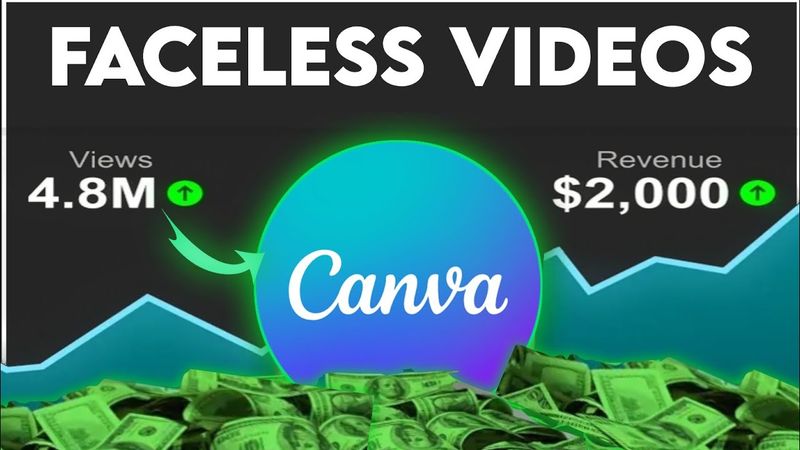
Download information and video details for Make High-Earning Faceless Videos With Canva for Free
Uploader:
Gessang AIPublished at:
1/8/2025Views:
503KDescription:
Video Transcription
Creating faceless YouTube videos is one of the best online side hustles right now.
Documentary style videos are especially lucrative.
Some channels make tens of thousands of dollars a month.
You're probably thinking, great for them, but I don't have the skills or money to hire an editor or use expensive software like Premiere Pro.
But what if I show you how to create these viral documentary videos with just Canva for free?
Really?
You mean you can do that?
Yes, you heard me right.
You don't need fancy tools or professional skills.
Canva, a free, easy-to-use platform, can help you create high-quality faceless videos that rival those made with expensive tools.
Stick around, because I will show you how it's done step-by-step.
It's much easier than you think.
Step one, start with the script.
Scripting is the backbone of every engaging documentary video.
In fact, a video with captivating scripting and basic editing is more likely to go viral than a poorly scripted video with professional editing.
So take this step seriously.
ChatGPT can give you a head start with scripting, but always review the script to see where improvements can be made.
You can also take inspiration from successful YouTube channels in your niche.
For this tutorial, I'm going to use only ChatGPT for the script.
Open ChatGPT and submit this prompt.
I need a YouTube video script for a documentary video about ancient Egypt that can be produced using Canva.
Add scene descriptions and keywords that can be easily found in Canva.
In a few seconds, ChatGPT will provide the script and scene description keywords.
Copy the script and save it in your text editor.
Separate the script from the scene descriptions and make sure your script is properly punctuated to generate a smooth voiceover with emotions.
ChatGPT can also help you with proper punctuation to add the desired emotions to your script.
There's a video in the description where I show you step-by-step how to do this.
You can check it out later.
Now that you have your script ready, let's move to the next step.
Generate a voiceover.
Canva does have a text-to-speech tool, but I recommend using Eleven Labs or Playhat for more realistic, high-quality voices.
They offer a free plan with 20 minutes of voice generation per month.
If you are looking for text-to-speech tools that offer unlimited free voice generation, I have already made a video on that.
You can check it out in the description.
In this tutorial, I'm going to use PlayT for the voiceover.
Open Play and paste your script.
Choose a voice that you like.
Generate your voiceover and download.
Next, open Canva and look for YouTube video.
This will open a blank white canvas.
Let's start with setting structures.
First, change the color of the canvas to black.
Next, upload your voiceover to Canva and add it to your video.
Click on the plus icon to add blank pages until they match the length of your voiceover.
Hey, hey, hey!
There's a big problem with the free version of Canva.
It may take ages to find the element you're looking for without a crown icon.
If you're ready to take Canva seriously and save time, consider subscribing to their premium version.
But if you don't have a budget for that, here's a faster alternative.
We will use the last page to gather all the elements we will use in the video.
Copy a keyword from the scene description generated by ChatGPT, paste it into Canvas search bar, and find elements or something close to the keyword.
Save them on the last page.
Continue this process for all keywords before starting the video editing.
Okay, now we have all our elements ready.
What next?
I don't know, maybe just add the clips according to the voiceover and add transitions, that's all.
Really?
Yeah, I mean, you're using Canva, what else would you do?
Yeah, you may be right, but I don't think so.
We need a captivating intro.
Intro is where your audience decides whether your video is worth watching or just another time waster.
For the intro, let's add three good-looking clips.
Select the clip, click Edit at the top and adjust for cinematic look by increasing the temperature, contrast and vignette.
Play around with the settings to achieve your preferred look.
Do the same with the remaining two clips.
Let's set the duration of each clip to 0.6 seconds.
Select the clip and click on the scissor icon.
Type in the duration or simply drag the clip to adjust the duration.
Do the same for all the three clips.
Next, let's add animation to each clip.
Select the clip and go to Animate at the top.
Choose a sharp animation like this pop.
Set it to On Enter.
Let's add another clip.
Adjust the look.
Let's add animation, but this time we're not adding to the clip but the page.
Select the page and choose Chill for a smooth fade animation.
Set it to On Enter.
Next, let's add sound effects to this intro immediately.
I want to match the transition with the sound effects to create an epic intro.
I got some sound effects from my sound file and a few others from Canva.
I'm going to leave a link and the name of all the sounds in the description so you can check them out.
Let's move forward.
Here is how far we have gone with the intro.
Don't worry, everything will be fine.
Let's add two more catchy animations.
Extend the last clip to 4 frames and split it after 2 frames.
Let's change the transition to Circle Wipe.
We have this.
Split it again immediately after the transition.
Reduce the size of the last clip to something like this.
After that, go to the element tab and search for Frame.
Choose the circle frame.
Drag the clip into the frame and position it at the center.
Let's add a border line and give it a nice gradient color.
This is what we have.
Let's move it to the left with custom animation.
Click on animate and choose this custom.
Next is to draw a line to link the two clips.
Look for Draw by the right side.
Choose any color you want.
Just drag the pen to get a straight line.
Select the drawing and give it your preferred color.
Position it at the center.
Let's give it this wipe animation and increase the size.
Change its position to the back.
Click on Position at the top.
Switch to Layer and drag the frame to the top.
Great!
Let's add the next frame.
I'm going for this.
Let's add a clip to it.
Add a borderline and give it a nice gradient color.
Next, we need to assign timing to the clip.
Right-click on the clip and choose Show Element Time.
This is where you set the time where the selected element should show up.
I'm going to adjust it to show immediately after the drawn line.
Give it a slide right animation.
Let's create this next animation.
Select the images and place the dark map as the background.
Give it this breathe animation.
Cover it up with the remaining two maps.
Let's add a custom animation and drag the first image to the left.
Make it smooth and adjust the speed to your liking.
Do the same to the other image.
Draw a circle around the Egypt area on the dark map.
Use the Show Element Timing to set when the element should show up.
Position it behind the two maps.
Next, let's create this animation.
First, choose one image.
Draw a square around it.
Duplicate the square and position them evenly in four places just like this.
Position all of them backward and drag it to the bottom right corner.
Add three more images to the same position.
Let's add custom animation to all of them and position them in each of the boxes.
Once you're done, remove the boxes.
Duplicate the clip and stretch the first clip to cover the entire canvas.
Add this stretch animation.
After this point, you can just keep the rest of the video normal by adding clips that match the voiceover.
Add transitions and animation where it's necessary.
Hey friend, thank you for getting to this point of the video.
I have a little secret for you.
You don't need to be an expert editor to make great videos, but believe me, you do need good sound design.
The right music and sound effects can transform your videos.
I recently started receiving comments from some of my videos about the music and sound effects I used because I figure out the magic behind sound design in video production.
So I try my best every now and then to get better with my sound design.
And I'm thinking, what if this is the only thing you need to transform your videos?
Well, I'm not an expert in this, but if you would love me to make a video that shows you step-by-step how I plan my sound design, let me know in the comment.
Now, back to the video.
Browse Canva's audio library for sound effects like risers, whooshes and impacts.
Drag these effects to specific points in your timeline.
Adjust volumes as needed to match the tone of your video.
For background music, choose something suspenseful or thematic that complements your visuals.
Oh!
I almost missed another important thing.
I need to add captions to the video.
But unfortunately, Canva Caption Tools only works for videos and not voiceovers.
So I have to export and re-import the video before I can generate captions.
Finally, let's edit the caption to taste.
That's it.
You've just learned how to create stunning faceless videos using Canva for free.
Let's see the final result.
But before that, if you found this helpful, don't forget to like and subscribe for more Canva tips.
Let me know in the comments if you would like to see more Canva tutorials.
Thank you for your patience.
Now the final result.
Ancient Egypt, a land of mystery, where golden sands meet the majestic Nile.
For over 3,000 years, this civilization thrived, leaving behind some of the world's most awe-inspiring wonders.
The Nile River wasn't just a body of water, it was the lifeline of ancient Egypt.
Its annual floods turned barren lands into fertile fields, fueling an agricultural revolution that fed one of the most powerful empires in history.
The pyramids of Giza remain one of the greatest engineering feats of humanity.
How did ancient Egyptians construct such colossal monuments without modern machinery?
It's a mystery that still captivates us today.
Religion shaped every aspect of Egyptian life, from Ra, the sun god, to Osiris, the god of the afterlife,
Their pantheon of gods governed the heavens, the earth, and everything in between.
From the mighty Ramses II to the enigmatic Cleopatra, the pharaohs ruled with divine authority.
They were not just kings and queens, but living gods on earth.
While monuments tell the story of kings, the daily life of the people tells us about resilience, creativity, and the pulse of Egyptian society.
The legacy of ancient Egypt continues to inspire the world thousands of years later.
Ancient Egypt may be long gone, but its mysteries endure, calling us to unravel the secrets of the past.
The sands of time may shift, but the wonders of Egypt stand eternal.
Similar videos: Make High

Viral Horizontal Reel Editing 2026 | Premiere Pro Tutorial
How To Make A New Sequence In Premiere Pro

Harmonic Flow – Sefiller (Official Techno EDM Music Video 2025) AI Cinematic

Clock Video Stock Footage
Harmonic Flow – Twist the Flame (Official Techno EDM Music Video 2025) AI Cinematic