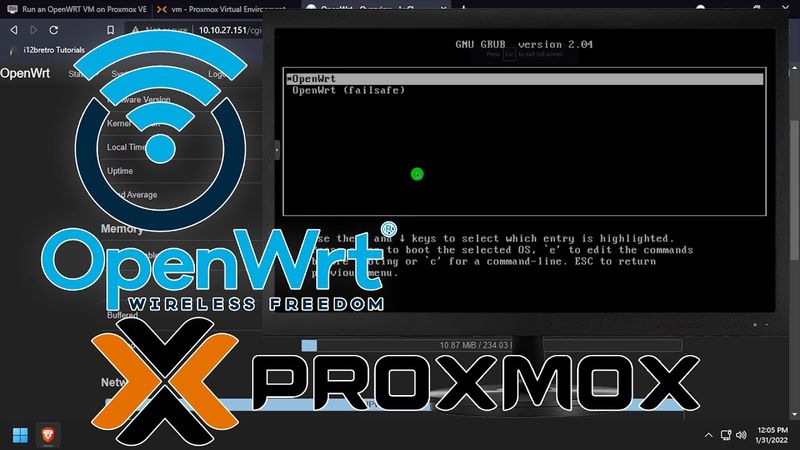
Run an OpenWRT VM on Proxmox VE

Download information and video details for Run an OpenWRT VM on Proxmox VE
Uploader:
i12bretroPublished at:
4/14/2022Views:
23.9KDescription:
#OpenWRT #Proxmox #VirtualMachine Full steps can be found at -------------------------------------------------------------------- What is OpenWRT? -------------------------------------------------------------------- OpenWrt is an open-source project for embedded operating systems based on Linux, primarily used on embedded devices to route network traffic. The main components are Linux, util-linux, musl, and BusyBox. All components have been optimized to be small enough to fit into the limited storage and memory available in home routers. - -------------------------------------------------------------------- Creating the VM -------------------------------------------------------------------- 01. Open a web browser and navigate to the ProxMox web UI https://ProxMoxDNSorIP:8006/ 02. Click the Create VM button at the top right 03. On the General tab, name the VM OpenWRT and set a VM ID (123 in this example) ≫ click Next 04. On the OS tab select Do not use any media and set the Guest OS Type to Linux and Version to 5.x - 2.6 Kernel ≫ click Next 05. On the System tab click Next 06. On the Hard Disk tab set the Disk size to 0.001 ≫ click Next 07. On the CPU tab set the number of CPU cores and the Type to host ≫ click Next 08. On the Memory tab set the amount of memory to 256 MiB ≫ click Next 09. On the Network tab set the Model field to VirtIO (paravirtualized), Uncheck the Firewall box ≫ click Next 10. On the Confirm tab review the settings and click Finish 11. Select the newly created OpenWRT VM from the left navigation panel 12. Select Hardware from the left sub-navigation menu 13. Click the Hard Disk to select it 14. Click the Detach button at the top of the main content window to detach the hard disk from the VM 15. Click the Unused disk to select it 16. Click the Remove button at the top of the main content window to permanently delete it 17. Click the Add button ≫ Network Device 18. Set the Model field to VirtIO (paravirtualized), Uncheck the Firewall box ≫ Click Add -------------------------------------------------------------------- Setting Up the OpenWRT Disk -------------------------------------------------------------------- 01. Select the Proxmox node name in the left navigation menu 02. Click Shell in the left sub-navigation 03. Run the following commands in the terminal # lookup the latest stable version number regex='≪strong≫Current Stable Release - OpenWrt ([^/]*)≪\/strong≫' && response=$(curl -s ) && [[ $response =~ $regex ]] && stableVersion="${BASH_REMATCH[1]}" # download openwrt image wget -O openwrt.img.gz # extract the openwrt img gunzip ./openwrt.img.gz # rename the extracted img mv ./openwrt*.img ./openwrt.raw # increase the raw disk to 512 MB qemu-img resize -f raw ./openwrt.raw 512M # import the disk to the openwrt vm # update the vm id and storage device as needed # usage: qm importdisk qm importdisk 123 openwrt.raw HDD_500GB 04. Once the disk import completes, select the OpenWRT VM from the left navigation menu ≫ Hardware 05. Double click the Unused Disk ≫ Click the Add button 06. Select Options from the left sub-navigation menu 07. Double click Boot Order 08. Check the Enabled box next to the hard disk 09. Drag the Hard disk up in the boot order as needed, typically below the CD-ROM device 10. Click OK 11. Double click Use tablet pointer ≫ Uncheck the Enabled box ≫ Click OK 12. Click the Start button in the top right of the screen 13. Click the Console link to watch the boot process 14. Wait for the text to stop scrolling and press Enter 15. Run the following command to change/set the root password passwd 16. Type a new root password twice to set it 17. Continue the configuration by running the following commands # set the lan ip address, use something in the same subnet as your LAN uci set network.lan.ipaddr='10.10.27.151' # restart network services service network restart # update openwrt packages opkg update # install the luci web ui opkg install luci 18. Open a new browser tab and navigate to http://IPofVM, http://10.10.27.151 in the example 19. At the login screen, enter the username root and the password set above ≫ Click the Login button 20. Enjoy OpenWRT running in Proxmox ### Connect with me and others ### ★ Discord: ★ Reddit: ★ Twitter:
Similar videos: Run an OpenWRT VM on Proxmox VE

ЖДЁМ АНОНС HALF-LIFE 3 (ПОСЛЕДНИЙ ШАНС)
ModelViewViewModel (MVVM) на Swift, iOS простой пример

Слабый ноут теперь ТОП игрушка! Как установить ChromeOS и получить ВСЁ!

КОНЕЦ БРУТАЛЬНОГО ЧЕЛЛЕНДЖА?

ЕЩЁ ОДНА HALF-LIFE 3? (Infinite Finality)